

Accounts, access, and billing
Billing controls product access. Membership controls which organization, team, or athlete records a signed-in user can reach.Secure your account in the iPhone app
The ProspectHQ iPhone app uses Clerk’s native account and security screens. It does not depend on a browser-hosted sign-in page.1
Open Account
In the iPhone app, choose the Account tab.
2
Open security settings
Select Manage security & backup codes.
3
Configure recovery and MFA
Use the native Clerk profile screen to manage your password, multi-factor authentication, and available recovery methods.
4
Save backup codes securely
Generate or regenerate backup codes from the security area. Store them somewhere private and separate from the device you normally use to sign in. Each code is intended for account recovery and should not be shared.
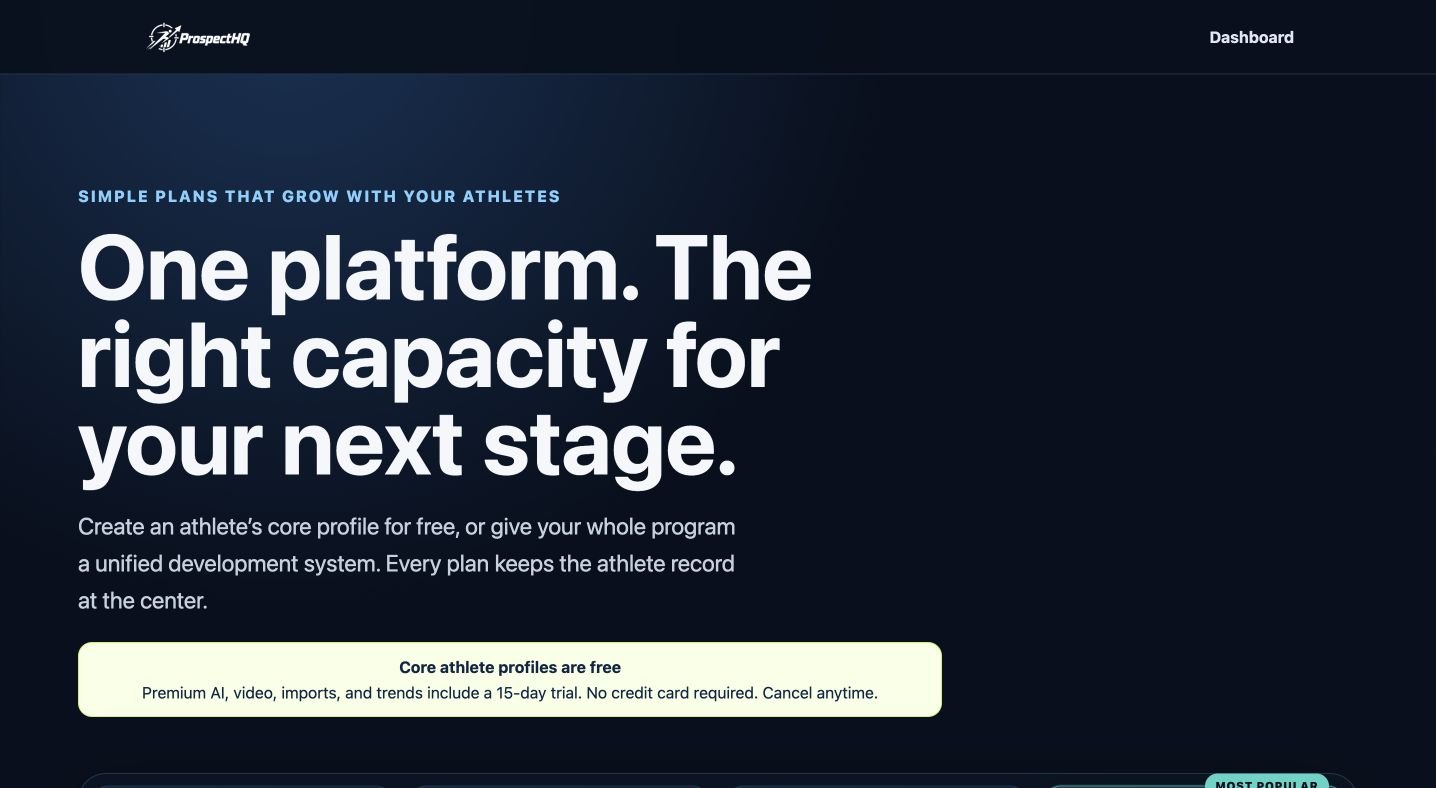
ProspectHQ publishes plan choices and billing periods before checkout.
Understand the access layers
Use invitations instead of shared credentials. Organization membership and team assignment are separate: a person can belong to an organization without access to every team.
Manage a subscription
Open the organization and select Billing. Organization owners and authorized administrators can review the active plan, switch billing period or plan, update payment details, or cancel through the billing interface.1
Confirm the correct billing owner
Billing changes should be made while the correct organization is active.
2
Open Billing
Review the current plan, player and team allowances, trial status, and subscription state.
3
Choose the change
Upgrade, change the billing period, update payment details, or cancel. Follow the confirmation steps shown by the secure billing provider.
4
Return and refresh access
After checkout, return to ProspectHQ and refresh the organization page. Billing updates can take a short time to synchronize.
Canceling does not immediately delete stored records. Access normally continues through the paid or trial period, then the workspace becomes read-only and AI tools pause until an eligible plan is active.
Manage organization members
Organization owners and administrators can invite members from the organization member area.- Administrator: full control inside the organization, including billing, members, teams, rosters, players, and stats
- Analyst: organization-wide player profile, upload, import, and stat editing without organization administration
- Coach: assigned team-page and roster management without player profile or stat editing
Manage team members
Open the team and use the team-access or member-management section.- Coach access is limited to assigned team pages and rosters. Coaches can add existing organization players to those rosters but cannot edit player profile or stat data.
- Analysts can edit player profiles and stats across the organization but cannot change team rosters or team pages.
- A legacy manager assignment may retain roster-scoped player management for organizations that already use it.
- Coaches and legacy managers should not receive access to other teams unless separately assigned.
- Team management accounts are different from public website staff biographies
Athlete and guardian access
Athletes and guardians can manage only the profiles they created or were invited to manage. When an athlete or guardian is linked to a player in an organization with active or grace-period access, the organization sponsors that profile’s athlete features and adds 100 videos to its personal allowance. The user does not need to buy a second personal athlete subscription and does not see free-player upgrade reminders while the sponsorship is active.1
Open the player
An authorized coach or organization manager opens the player’s private management page.
2
Choose the correct invitation
Invite the athlete or guardian using the appropriate access tool and their own email address.
3
Recipient accepts
The recipient signs in or creates an account, then accepts the invitation before management access is active.
4
Review control and privacy
The athlete or guardian can manage the profiles assigned to them and retain supported privacy controls. A guardian may manage multiple invited or individually created players.
Organization-sponsored access does not create a duplicate player or personal subscription. If the organization becomes read-only or the membership or player link is removed, sponsored premium editing pauses while retained records remain protected.
What happens when a plan ends?
ProspectHQ retains the organization’s records and changes the workspace to read-only. Editing and AI coaching pause. Public or retained data behavior remains subject to profile visibility, the service terms, and any deletion request from an authorized user. Existing athlete videos are not deleted when a plan ends or an athlete moves to a smaller video allowance. Authorized users can continue to view, download, and remove retained videos. New uploads resume after the library is below its current video-count and storage limits, or after eligible access is restored.Troubleshoot plan changes
I upgraded but the old plan still appears
I upgraded but the old plan still appears
Confirm you upgraded the organization—not only an individual user plan—and that the correct organization is active. Refresh the Billing and Overview pages. If access remains incorrect, contact support with the organization name, expected plan, approximate checkout time, and payment receipt reference. Do not send a card number.
Restart access does not change anything
Restart access does not change anything
Open Billing and confirm an active subscription exists for the current organization. A restart link cannot restore editing until the billing provider reports an eligible active plan.
A member cannot see a team
A member cannot see a team
Confirm the person accepted the organization invitation and was separately assigned to that team with the correct role.